
Diecast Guides
How to Connect an OBD2 Scanner to Your Phone by Bluetooth

Oct
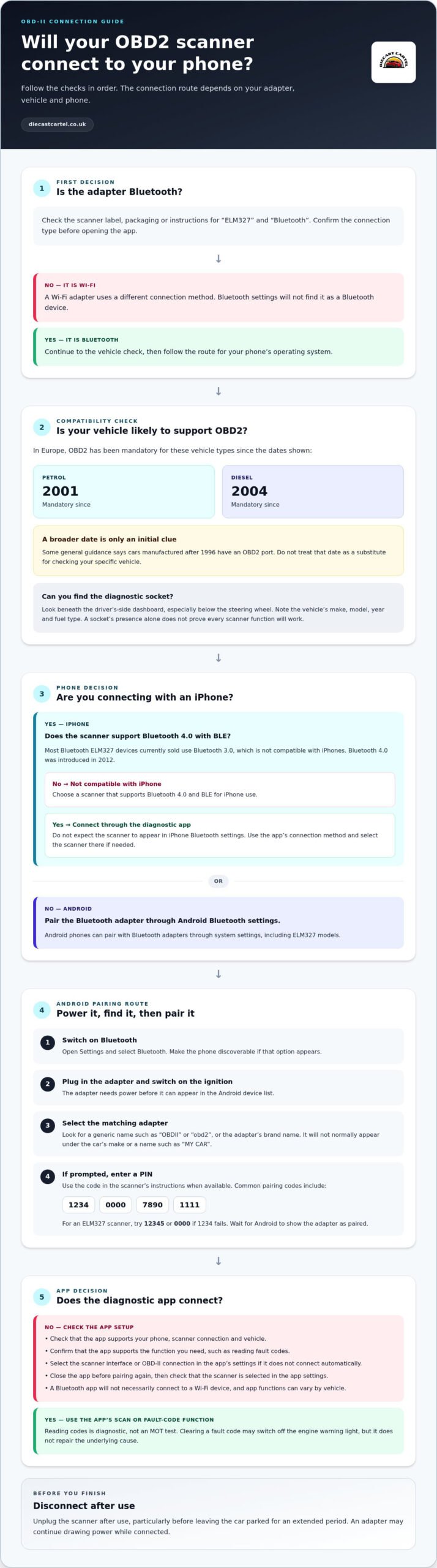
The scanner may not appear in your iPhone’s Bluetooth settings at all. To understand how to connect an OBD2 scanner to your phone, pair many Android adapters through Bluetooth settings, but on iPhone choose a compatible Bluetooth 4.0 device that supports BLE and connect through the diagnostic app. That difference can save you a frustrating false start.
It’s easy to assume every Bluetooth scanner pairs the same way, or that a missing device means something is broken. In practice, your phone’s operating system, the scanner’s Bluetooth type, vehicle compatibility and app settings all shape the connection. Android pairing may also prompt for a PIN, with common options including 1234 or 0000.
This guide walks you through checking your vehicle’s compatibility, finding and powering the scanner, setting up the diagnostic app, and pairing with Android or iPhone. You’ll also find practical steps to try if the scanner doesn’t appear or the app won’t connect, helping you move from plugging in to viewing diagnostic data with confidence.
Key Takeaways
- For Android, look for the adapter in Bluetooth settings under a generic name or its brand, then try a common PIN such as 1234 or 0000 if prompted.
- On iPhone, choose a Bluetooth 4.0 scanner that supports BLE and connect through the diagnostic app rather than iPhone Bluetooth settings.
- Check your vehicle’s age and fuel type against the European OBD2 compatibility dates before setting up the scanner.
- Find the diagnostic socket beneath the driver’s-side dashboard, plug in the scanner and switch on the ignition to power it.
- If the app doesn’t connect, close it before pairing again and check that the scanner is selected in the app’s settings.
Bluetooth OBD2, what are the specific features?
Bluetooth adapters send diagnostic data from the vehicle to a phone app wirelessly. On Android, pair the adapter through Bluetooth settings. On iPhone, the scanner’s Bluetooth version and the app’s connection method determine how to connect.
Check Bluetooth adapter compatibility
Check the adapter’s Bluetooth type before starting. Most Bluetooth ELM327 devices currently sold use Bluetooth 3.0, which isn’t compatible with iPhones; iPhone use requires Bluetooth 4.0 with BLE support. Bluetooth 4.0 was introduced in 2012. Android phones can pair with Bluetooth adapters through system settings, including ELM327 models.
- Confirm it’s a Bluetooth ELM327 adapter. Check the scanner’s label, packaging or instructions for “ELM327” and “Bluetooth”. A Wi-Fi adapter uses a different connection method, so Bluetooth settings won’t find it as a Bluetooth device. Check the connection type before plugging it in or opening your app.
- Switch on Bluetooth on your Android phone. Open Settings, select Bluetooth and make the phone discoverable if that option appears. Plug the adapter into the vehicle’s diagnostic socket and switch on the ignition. The adapter needs power before it can appear in the Android device list.
- Select the adapter in Bluetooth settings. Look for a generic name such as “OBDII” or “obd2”, or the adapter’s brand name. It won’t normally appear under the car’s make or a name such as “MY CAR”. Tap the matching adapter entry to begin pairing, rather than selecting another nearby device.
- Enter a PIN if Android asks. Common pairing codes include 1234, 0000, 7890 and 1111. For an ELM327 scanner, try 12345 or 0000 if 1234 fails. Enter the code shown in the scanner’s instructions when available, then wait for Android to show the adapter as paired.
Read fault codes after pairing
After Android shows the adapter as paired, open the diagnostic app. Select the scanner interface in the app’s settings if it does not connect automatically, then use the app’s fault-code or scan function. Reading codes is diagnostic, not an MOT test. Bluetooth pairing alone does not determine warranty coverage, which depends on the warranty terms and any fault, repair or modification. If your diagnostic checks are part of wider vehicle optimisation or remapping plans, resources such as ecumaps.store provide ECU tuning files for a wide variety of car makes. Unplug the scanner after use, particularly before leaving the car parked for an extended period, as an adapter may continue drawing power while connected.
Checking vehicle OBD2 compatibility
- Check the vehicle’s fuel type and age. In Europe, OBD2 has been mandatory for petrol vehicles since 2001 and diesel vehicles since 2004. These dates help you judge whether a UK vehicle is likely to support the standard. Some general compatibility guidance also says cars manufactured after 1996 have an OBD2 port. Treat that broader date as an initial clue, not a substitute for checking your specific vehicle.
- Look for the diagnostic socket. Check beneath the driver’s-side dashboard, especially below the steering wheel, where the OBD-II port is usually located. The socket gives you a place to connect the scanner, but its presence alone does not prove that every scanner function will work. Note the vehicle’s make, model, year and fuel type before choosing an app or adapter.
- Match the app to the vehicle and scanner. Read the app description for vehicle coverage and supported scanner connections before installing it. An app designed for Bluetooth ELM327 adapters won’t necessarily connect to a Wi-Fi device, and an app’s available functions can vary by vehicle. Match the phone’s operating system, adapter connection type and vehicle details to the app’s stated compatibility information.
- Decide what information you need. If you want to read engine fault codes, choose an app that clearly supports code reading and displays descriptions. Other diagnostic functions may depend on the vehicle and app, so do not assume every feature works with every model. An app, for example, may connect to a scanner but provide limited information for a particular vehicle.
- Check the app’s device-selection options. Look for settings that let you choose an OBD-II scanner or connection interface. If the app does not connect automatically, selecting the scanner type in its settings may resolve a mismatch. Keep the app’s connection instructions handy, especially if it distinguishes Bluetooth from Wi-Fi or asks you to select an adapter profile.
- Keep the compatibility check separate from model collecting. A diagnostic app helps investigate a real vehicle; a scale model is for enjoying vehicle design in a different way. If engineering-inspired collectibles are also part of your interests, explore remote-control construction vehicles separately from your scanner setup.
Installing and connecting a diagnostic app
Install an app that supports your phone, scanner connection and vehicle. Some diagnostic apps can clear fault codes, which may switch off the engine warning light, but clearing a code does not repair the underlying cause.
Install a diagnostic app
Choose an app that supports your scanner’s connection type and your phone’s operating system. Check its description for diagnostic functions, such as reading fault codes, before installing it. An app that supports Wi-Fi will not necessarily connect to a Bluetooth adapter. Keep the scanner’s instructions nearby, as they may explain which app settings or interface to select.
- Open your phone’s app store and search for an OBD-II diagnostic app.
- Check that the app supports your scanner’s connection type, such as Bluetooth or Wi-Fi.
- Read the feature description and choose an app with the diagnostic functions you need.
Find the diagnostic port
Locate the vehicle’s OBD-II diagnostic port before opening the app. It is usually beneath the driver’s-side dashboard, below the steering wheel. Check the surrounding trim for a socket that matches the scanner’s connector. Do not force the plug: align it with the port and insert it carefully. Finding the socket first makes the connection steps easier to follow.
- Look beneath the dashboard on the driver’s side, particularly below the steering wheel.
- Identify the diagnostic socket and compare its shape with the scanner’s connector.
- Position the scanner plug correctly, then insert it without forcing the connection.
Connect and use the app
After plugging in and powering the scanner, open the diagnostic app. Follow its connection prompts, then select the OBD-II scanner in its settings if the connection does not start automatically. Once connected, use the app’s scan or fault-code function to view available results. Clearing codes does not fix the underlying fault, so use the displayed information to understand what needs attention. If persistent mechanical or engine issues arise, consulting vehicle repair specialists such as dieseldoctor.netlify.app can help resolve the problem properly.
- Start the app and follow its instructions to connect to the scanner.
- Open the app’s settings and select the OBD-II scanner if it does not connect.
- Choose the fault-code scan function and review the results before clearing anything.
Plugging in the scanner and switching on the ignition
Connect the scanner before opening the diagnostic app, then power the vehicle’s OBD-II port. For setup, turn the ignition to its second position to power the port while leaving the engine off.
Plug in the scanner
Insert the OBDII ELM327 Bluetooth adapter into the car’s diagnostic socket. The port is usually beneath the driver’s-side dashboard, below the steering wheel. Align the adapter with the socket and push it in carefully. A loose or misaligned connection can prevent the scanner from communicating with the vehicle, so check that it sits firmly before moving to the ignition.
- Park the car and locate its OBD-II diagnostic socket beneath the dashboard.
- Line up the scanner’s connector with the socket, then insert it without forcing it.
- Check that the adapter is seated securely before switching on the ignition.
Switch on the ignition
Turn the ignition key to its second position to power the diagnostic port while keeping the engine off. In a vehicle with a start button, use the ignition-on setting described in the vehicle’s instructions. The scanner needs power to communicate with the car; starting the engine is another option stated for an OBDII ELM327 setup. Follow the vehicle’s controls carefully.
- Keep the engine off and turn the key to the second ignition position for setup.
- If your vehicle uses a start button, select ignition-on mode rather than guessing at the control sequence.
- Start the engine only if needed for your scanner setup. The adapter can also be powered with the ignition on.
Once the ignition is on, check that the scanner has power, then open the diagnostic app and begin connecting. If the app does not connect, confirm that the adapter is fully inserted and the ignition is still on. The diagnostic socket loses power when the vehicle is switched off, so complete the scan before turning off the ignition.
After inserting the OBDII ELM327 Bluetooth adapter into the car’s diagnostic socket, turn on the ignition or start the engine to provide the required operating condition.
Connecting an OBD2 scanner to iPhone
For iPhone, choose a Bluetooth 4.0 scanner that supports BLE. Pair it through the diagnostic app, not the iPhone’s Bluetooth settings.
- Check the scanner’s Bluetooth specification. Read its packaging or instructions for Bluetooth 4.0 and BLE support before connecting. Older Bluetooth 3.0 OBD2 devices aren’t compatible with iPhones. Most Bluetooth ELM327 devices currently sold use Bluetooth 3.0, so check the version carefully rather than relying on the ELM327 label alone.
- Choose an iPhone-compatible diagnostic app. Install an app that supports both your scanner’s connection type and the diagnostic functions you need. Check its instructions for the scanner interface or connection option it uses. An app may support Bluetooth scanners generally but still require you to select a particular interface in its settings.
- Power the scanner before opening the connection screen. Insert it into the vehicle’s OBD-II diagnostic port and switch on the ignition. If the adapter has a power button, press it before connecting. The scanner needs power to communicate, so check that it is switched on before trying to connect through the app.
- Close any diagnostic app already running. If the OBD-II app is open in the background, close it before trying to pair again. An existing app session can interfere with a fresh connection attempt. Once the scanner is powered and ready, reopen the app you intend to use and follow its connection instructions.
- Select the scanner interface inside the app. Open the app’s connection or adapter settings and choose the relevant Bluetooth scanner interface. Don’t search for the OBD2 scanner in iPhone system Bluetooth settings. The app handles this connection, so use its device-selection screen even if the scanner doesn’t appear in iPhone settings.
- Wait for the app to show a connection. Keep the ignition on and the scanner powered while the app attempts to connect. Check that the selected interface matches the adapter, then follow any onscreen prompts. Once connected, use the app’s diagnostic functions, such as reading available fault codes.
- Troubleshoot by checking one setting at a time. If the scanner does not connect, confirm BLE compatibility, ignition power and the app’s selected interface. Close the app again if it is still running in the background, then restart the connection process. Changing one setting at a time helps identify whether the problem is compatibility, power or app selection.
Diecast Cartel: 1:24 scale Diecast models and trucks
Diecast Cartel is a natural next stop if checking your vehicle has sparked an interest in automotive models. Explore 1:24 scale diecast models and trucks, including diecast trucks and tractors, or consider 1:18 scale model cars for a different display size. Each scale offers its own way to enjoy the shape and detail of vehicles beyond the diagnostic screen.
If you prefer hands-on play, the 1:24 remote control forklift adds a working vehicle to your collection. Whether you’re choosing a first model or adding another favourite, browse the options at your own pace.
Visit Diecast Cartel to explore the diecast model range.
Make your next motoring discovery
Once you know how to connect an OBD2 scanner to your phone, you can turn a diagnostic question into a clearer next step for caring for your car. Keep a note of any fault codes you read and the symptoms you’ve noticed. That record can help you track what changes over time, rather than relying on memory alone.
And if exploring your vehicle has renewed your appreciation for its design, you can bring that interest into your collection. Diecast Cartel offers 1:24 scale diecast models and trucks, diecast trucks and tractors, and 1:18 scale model cars. Each gives you a different way to enjoy the lines, details and character of vehicles, whether you’re starting a collection or adding a model that feels just right.
Ready to explore the range or ask a question? Contact Diecast Cartel and take the next step at your own pace.
Frequently Asked Questions
OBD-II WiFi, OBD-II Bluetooth or OBD-II USB?
Choose the connection type supported by both your phone and diagnostic app. Bluetooth avoids a cable and, with BLE 4.0, uses less power than a Wi-Fi OBD2 device. Wi-Fi can suit a scanner-and-app combination designed for that connection. USB gives a wired connection, but your phone must support the scanner’s connector. Check the app’s instructions before choosing; the adapter and app need to work together.
What is the pairing code for an OBD2 reader?
Common Android pairing codes include 1234, 0000, 7890 and 1111. Try the code supplied with your scanner first, since adapters can differ. For an ELM327 scanner, if 1234 fails, try 12345 or 0000. Enter the code when Android prompts you during pairing. If none works, check the adapter’s own instructions rather than repeatedly trying unrelated codes.
How do I connect an OBD2 scanner to an Android phone via Bluetooth?
Switch on Bluetooth on your Android phone, power the scanner, then select its name from the phone’s Bluetooth settings. It may appear as “OBDII”, “obd2” or the adapter’s brand, not your car’s name. Enter the pairing code when prompted. Then open your diagnostic app and select the scanner interface in its settings if the app doesn’t connect automatically.
How do I connect an OBD2 scanner to an iPhone via Bluetooth or Wi-Fi?
For Bluetooth, use an iPhone-compatible Bluetooth 4.0 scanner that supports BLE, then select its interface inside the diagnostic app. Don’t expect it to appear in iPhone Bluetooth settings. For Wi-Fi, choose an app that supports your scanner’s Wi-Fi connection and follow its in-app setup instructions. The adapter, connection type and app must match for the iPhone to receive diagnostic data.
Where is the OBD2 port located in a UK car?
The OBD-II port is usually under the driver’s-side dashboard, beneath the steering wheel. Check the lower dashboard area for the vehicle’s diagnostic socket. Its exact position can vary, so look around the steering column if it is not immediately visible. Once you find it, compare the socket with your scanner’s plug and align the connector carefully. Do not force it into place.
Which OBD2 adapters and phone apps are compatible?
Compatibility depends on the phone’s operating system, the adapter’s connection type and the vehicle’s supported diagnostics. For example, an iPhone needs a Bluetooth 4.0 adapter with BLE for Bluetooth use, whilst an Android phone can pair through its Bluetooth settings. Check that the app supports your specific adapter type, such as Bluetooth or Wi-Fi, and offers the function you want, such as reading fault codes.
Do OBD2 scanners work with all cars and model years in the UK?
No, compatibility depends on the vehicle and scanner. In Europe, OBD2 has been mandatory for petrol vehicles since 2001 and diesel vehicles since 2004; general guidance also identifies cars manufactured after 1996 as having an OBD2 port. These dates are useful clues, but they don’t mean every scanner function works on every vehicle. Check the scanner and app’s vehicle coverage.
Bluetooth versus Wi-Fi OBD2 adapters: which is better for phones?
Neither connection is automatically better; choose the one your phone and diagnostic app support. Bluetooth suits a compatible pairing setup, whilst Wi-Fi works with apps designed to communicate with a Wi-Fi adapter. BLE 4.0 Bluetooth OBD2 devices consume less power than Wi-Fi OBD2 devices. On iPhone, Bluetooth use requires a BLE-compatible adapter, and the connection is made through the diagnostic app.
